Research & guides / Workflow guide
What Is a Virtual Front Desk? A Practical Solution for Busy Businesses
See how a virtual front desk can address unattended arrivals, repeated questions and coverage across locations with self check-in and live human help.
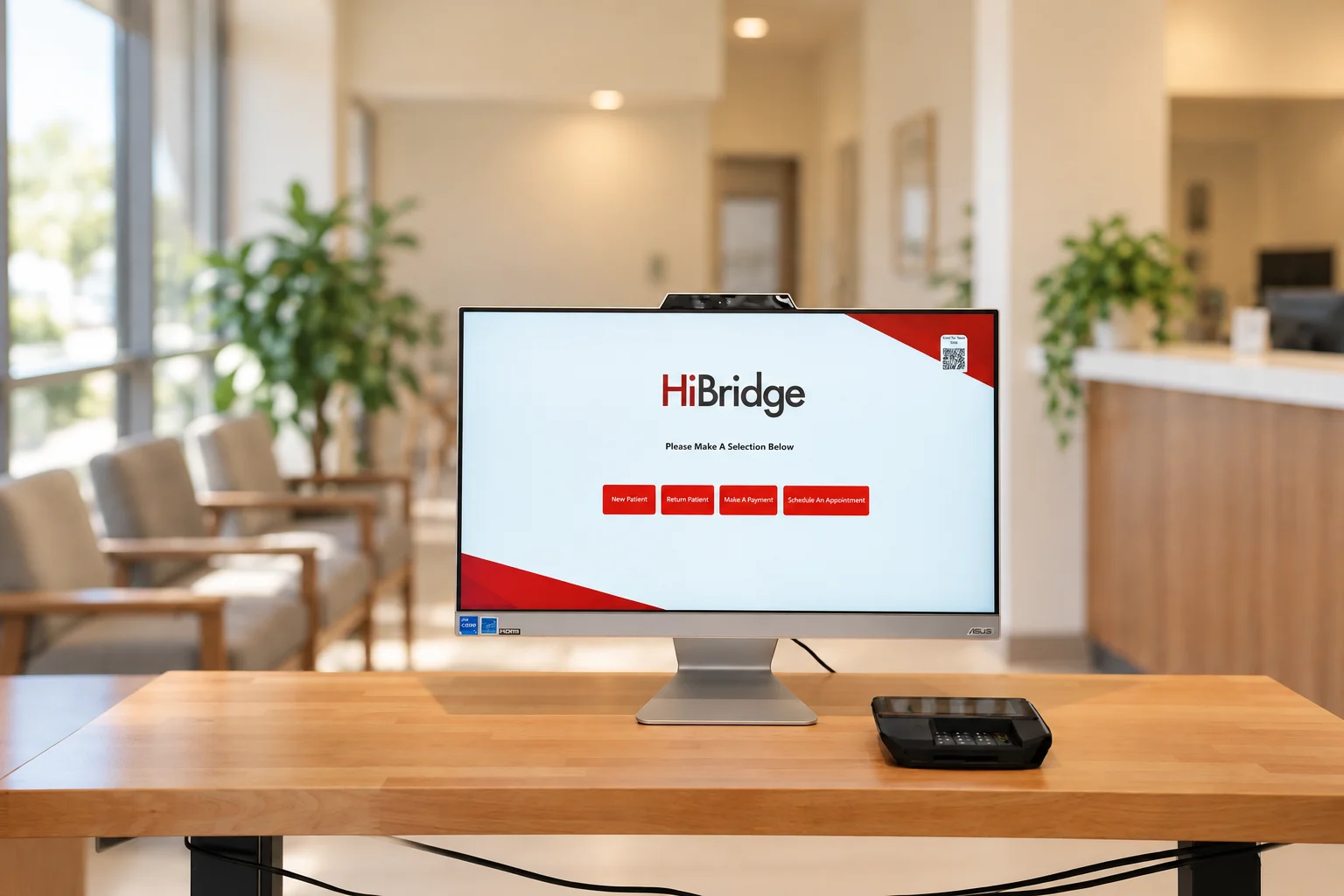
A customer arrives while your receptionist is on the phone. A team member leaves the desk to finish paperwork. At another location, visitors receive different instructions. These are workflow problems: the person who can help is not always available at the counter when someone needs them.
A virtual front desk gives visitors a clear place to start and a way to reach a person working remotely. With HiBridge, that can mean a configurable kiosk, self check-in and live video reception. It is a way to organize arrival and assistance around the work your business needs to complete, with the appropriate staffing behind it.
What problems can a virtual front desk help solve?
Reception spans many industries. The U.S. Bureau of Labor Statistics identifies greeting visitors, answering calls, scheduling and notifying employees about arrivals as common duties. Those responsibilities compete for attention wherever people arrive in person.
| Front desk problem | How the workflow can help | What to measure |
|---|---|---|
| A visitor arrives while the desk is busy or temporarily empty | Provide a visible starting point and access to the designated remote team during staffed hours | Time until acknowledgment and unanswered requests |
| Staff repeatedly explain the same arrival steps | Put approved instructions on the kiosk and reserve conversations for questions | Requests for clarification and incomplete check-ins |
| One employee switches between greeting visitors and back-office work | Assign routine arrival steps and live assistance to defined roles | Interruptions and administrative work completed |
| Locations give inconsistent instructions | Use a shared welcome process with local details and contacts | Incorrect directions and failed handoffs |
| A visitor cannot complete self-service | Offer an obvious route to a person and an onsite alternative | Help requests resolved and visitor feedback |
These are opportunities to test. The results depend on your visitor volume, staffing, setup and follow-through.
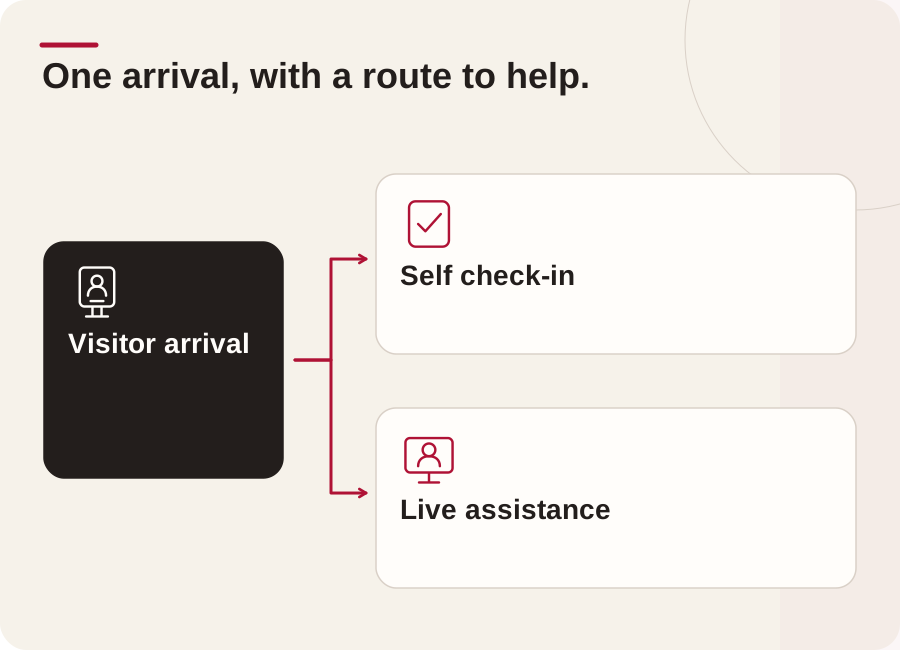
How does the experience work, step by step?
- Give visitors a clear starting point. Configure the kiosk with your logo, welcome message and relevant choices. Keep the first screen focused on why people visit, such as checking in or speaking with reception.
- Let routine arrivals use the approved self-service path. Use the steps your location needs. HiBridge’s self check-in workflow includes options for forms and payments; confirm the equipment and configuration required for your use case.
- Make live help easy to request. A visitor who has a question can connect with a real receptionist on screen during the agreed coverage hours. HiBridge does not offer an AI receptionist.
- Route the request to the authorized team. The receptionist follows your procedure to contact a host, check an approved system or escalate an exception. Confirm which actions are manual and which depend on a supported integration.
- Bring in onsite help when the task requires it. Assign someone for physical assistance, restricted-area decisions or another task that cannot be completed remotely. Explain the fallback if the remote team or internet connection is unavailable.
The visitor should know what happens next at every stage. A digital welcome has little value if a completed check-in or unanswered question has no owner.
How could different businesses use this approach?
The following examples illustrate workflows to evaluate, rather than reported customer results or a guarantee that every feature fits every location.
Professional offices: A visitor arriving for an appointment can start at the kiosk while administrative staff finish other work. A remote receptionist clarifies whom they are meeting and contacts the host through the approved channel. The host still decides whether the visitor may enter a private area. This separates the initial greeting from the employee’s physical presence at the counter.
Fitness and wellness businesses: A prospective member can request a conversation while an onsite employee is helping someone on the floor. Reception can explain approved information and route a tour request. An onsite team member still conducts the tour, supervises activity and responds to safety concerns. Membership-system access must be checked during setup.
Hospitality: A remote receptionist can answer approved arrival questions and contact the appropriate onsite employee. The business must separately verify reservation access, payment arrangements and any physical key process. Reception support does not automatically provide room access, round-the-clock staffing or a replacement for onsite guest assistance.
Education and government: An arrival screen can direct visitors to the relevant office and offer live administrative assistance. The institution retains its identity checks, visitor approvals and security procedures. A virtual receptionist is not a door-access system, a security officer or an emergency-response service.
Healthcare: Patients can follow the approved check-in path and request human help with an administrative question. Clinical decisions stay with the clinical team. AHRQ’s Welcome Patients guidance recommends clear signage, appropriate language support and offering patients help. That is healthcare guidance for designing the experience, not evidence of HiBridge performance.
Can we use our existing employees?
Yes. HiBridge’s platform overview describes using your own employees, a central team serving multiple locations, a staffing partner or a combination. You can evaluate moving some reception work to an existing office, adding backup coverage or sharing a trained team across locations.
Define who provides the people, who trains them and which hours they cover. A kiosk does not create staffing capacity by itself. If several locations have simultaneous arrival peaks, the shared team needs enough people and a clear overflow plan. Confirm platform, staffing, hardware and implementation costs separately in the proposal.
How do we know whether it will help our business?
Start with one location or a limited set of tasks. Record a baseline, agree on the desired improvement and compare similar periods after the pilot begins. Look at:
- Time from arrival to acknowledgment and to live assistance.
- Check-ins completed, abandoned or needing help.
- Requests that reach the correct employee on the first attempt.
- Interruptions to onsite staff and administrative tasks completed.
- Visitor feedback, including accessibility and language needs.
- Total operating cost, including remote coverage, hardware, connectivity and remaining onsite work.
Collect only the information needed for the assessment. Test a busy period, an unfamiliar visitor, a request outside the receptionist’s authority and a connection outage. Clear screens, reachable assistance and a workable backup matter as much as the technology.
What should we bring to a demonstration?
Bring your busiest arrival period, three common questions, one difficult exception and a list of tasks that require someone onsite. Ask HiBridge to demonstrate who handles each step and what happens when nobody answers. Schedule a demo to map a virtual front desk to your business’s actual workflow, coverage needs and visitor experience.